![Parsd_logo_new_gray_large.png]](https://support.parsd.com/hs-fs/hubfs/Parsd_logo_new_gray_large.png?height=49&name=Parsd_logo_new_gray_large.png)
The Parsd Analytical Platform uses the data you provided. We use your data to "ground" the answers given by the AI model to reduce the risk of hallucinations when the AI model has not been trained in data from your subject area.
In the Parsd Analytical Platform, there are three (3) different chats:
- ChatDoc - Chat with one Knowledge Object at a time. Read more about the ChatDoc here
- ProjectChat - Chat with all the Knowledge Objects in the (research) project
- KnowledgeChat - Chat will all of your Knowledge Objects stored in your Knowledge Base
Remember that Knowledge Objects are stored once and can be added to one or more projects.
How the AI-answers are being generated
- You enter a question
- We turn that question into numbers using an AI model
- We compare the numbers with your indexed data
- We generate a list of the most relevant text segments (search results)
- We give that list to another AI model and tell it to answer the question based on the list of search results.
- The AI model generates an answer using the tone and output format you specified.
Remember to write complete sentences with specific details in the question. Read more about how to write good prompts and questions.
Chat history
All your questions and answers are stored in the chat history. Remember that there are three different chat history lists - one for each type of chat.
For each question/answer pair, there are these different buttons and features:
- Copy the question/answer pair to the clipboard
- Star to favorite the question/answer pair
- Thumbs up if the answer was useful
- Thumbs down if the answer was not useful
- Dustbin to delete the question/answer pair

Use the chat history and favorites to start collecting text for your final product. Use the copy feature to paste text into your favorite application.
Filter the chat history & copy all answer/question pairs
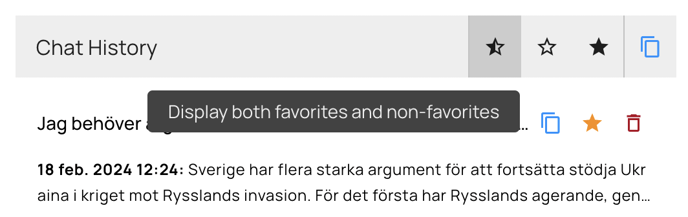
- There are 4 buttons for the chat history.
- The three stars are used to filter the chat history like this:
- The one to the left displays all items (favorites and non-favorites)
- The one in the middle displays only non-favorites
- The button on the right shows the question/answer pairs that you have set as favorites.
- Finally, there is a button to copy the complete chat history to the clipboard.